Screenshot
Updated for Logos 10+
From time to time you may be asked to attach a screenshot of the issue you are seeing.
This wiki will show how you can take a screenshot using tools from your computer’s operating system, or special utilities.
As you cannot paste a screenshot into the forum, it will also show how to attach it to your post.
Taking a Screenshot
Web Site take-a-screenshot.org has screen shot tutorials for Android, iOS, Windows, Mac, Chrome OS, and Linux in several languages:
Mac
- macOS and OS X have screen capture keyboard shortcuts. Shift + Command + 3 (or 4) copies screen image (or selected portion) to clipboard.
- The Screenshot utility can capture a Window, Selection, Screen, OR Timed Screen, then copy the capture to clipboard.
See “Take screenshots or screen recordings on Mac”.
- The Preview application has several graphical editing capabilities, including annotating, cropping, and rotating:
- File Menu => New from Clipboard
- File Menu => Save As
- Save image in PNG or JPG format.
- Remember where you saved the file (along with name).
Windows
- Find the “Print Screen” key (it may be labelled PrtSc/PrntScr). Press Alt + PrtSc to put a copy of the active window in the clipboard.
- Then open Microsoft Paint, or some other graphics editor.
- In the menu click Edit > Paste to paste the contents of the clipboard to your new graphic.
- Choose File > Save As
- Save the file with a meaningful name as a JPG, GIF or PNG file (BMP/Bitmap are too large).
- Remember where you saved the file (along with name).
Windows Quick Screenshot
Hold down the “Windows” key + the “Print Screen” key. On tablets use “Windows” + “Volume Down”.
Your screen will darken for a split second, then it is copied to clipboard, and you will have a “Screenshot” file in your Pictures >> Screenshots folder.
Special Utilities for Windows & Mac
Jing / Techsmith Capture
Many forum users use Jing - now replaced by Techsmith Capture. The free version will do both image and video captures of specific areas of your screen. You can then do minor edits if necessary, such as including arrows and boxes. You can then paste into Amber or save the capture locally on your computer.
Special Utilities for Windows
FastStone Capture
FastStone Capture is a powerful, lightweight, yet full-featured screen capture tool and screen video recorder.
Greenshot
Greenshot is a free light-weight screenshot software tool for Windows
IrfanView
IrfanView is a well established image viewer and converter, which is free for non-commercial use.
Gadwin
Gadwin offers a free and a paid Pro version – the free version works well.
Paint.NET
Paint.NET is a free image and photo editing software for Windows with a wide variety of useful and powerful tools.
PicPick
PicPick is free for personal and non-profit use. You can edit, draw boxes, circles, etc., before saving. Easy to use.
NOTE: Install any Free version with care as they could be bundled with Apps that you do not want.
Attaching a Screenshot
Uploading Screenshot to the Forum via Paperclip icon
requires locally saved screenshot file in png or jpg format
- Hit reply to respond to a message (or create a new message). You can’t upload screenshots using Quick Reply.
- Locate paperclip icon and click it
- This will bring up a dialog to Insert Media.
- Click Browse to locate your image, adust the Max width if you want to change scaling (not normally necessary).
- click INSERT.
- Voila!
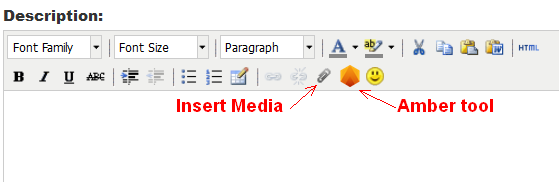
Uploading Screenshot to the Forum using Amber
assumes screenshot copied in clipboard
- Hit reply to respond to a message (or create a new message). You can’t upload screenshots using Quick Reply.
- Locate Amber icon and click it
- This will bring up the Amber upload dialog
- Click into right half of Amber screen, then hit Ctrl+V to paste your image, which will automatically upload to Faithlife’s Amber cloud storage
- click INSERT.
- Voila!