Mac and PC User Interface Differences
Page Contents
Common Experience
Logos for Mac and Logos for PC share code base – most items function identically on both platforms (including right and left mouse click options in File, Guides, and Layouts menus). Primary User Interface differences are Screen layout and icon colors.
Default File Paths
| Operating System |
Library Path (per user) (substitute your user name for username) |
| Mac OS X |
/Users/username/Library/Application Support/Logos4 |
– On OS X, Logos4 folder is used by Logos 6, Logos 5 and Logos 4 |
| Mac OS X |
/Users/username/Library/Application Support/Verbum |
– New Verbum install |
| Windows 8, 7, & Vista |
C:\Users\username\AppData\Local\Verbum |
– New Verbum install |
| Windows 8 & 7 |
C:\Users\username\AppData\Local\Logos |
– New Logos 6 install |
| Windows 8, 7, & Vista |
C:\Users\username\AppData\Local\Logos5 |
– New Logos 5 install |
| Windows 8, 7, & Vista |
C:\Users\username\AppData\Local\Logos4 |
– Logos 4 install, which can be upgraded to Logos 5 |
| Windows XP |
C:\Documents and Settings\username\Local Settings\Application Data\Logos4 |
– Logos 4 install that is not upgradeable |
Feature Parity
Not yet Fixed – Logos 5 and 4
Future plans
- PC Syriac ligature connected correctly, but Mac displays Syriac text as independent letters. Mac final forms are disconnected Logos User Voice suggestion => Connect Syriac Ligature on Mac
- Logos: Text display is a function of the operating system, not Logos. Some ancient scripts have errors on certain platforms. We plan to implement our own low-level text shaping / rendering in a future release of Logos Bible Software, to ensure consistency across all platforms, but until then will be unable to address text shaping bugs at the OS level.
- Logos 5.2a => Thanks! Syriac is now better, but..
- PC Text Comparison can select and copy individual verses, but Mac needs workaround using Print/Export
- Logos: The Windows edition gets text selection “for free” from the system-level control used to display the comparison grid. On the Mac we have to render the grid directly; there’s no “free” support for text selection. This would be very expensive to write, and our future plans involve an alternate display path that will again give us “free” selection support from the platform. We are unlikely to fix this until we make this more fundamental change.
- PC Command can import Libronix 3 file(s) while Mac import has lots of leaking memory errors
- Logos: Importing old documents isn’t officially supported on Mac. However, we will look into the memory leaks for Sentence Diagram importing in a future release.
- PC Library indexing is substantially faster than Mac – Logos 4.5 regression
- Logos: We are constantly investigating options to improve performance of indexing on both platforms. For Mac in particular we have some internal prototypes that have shown significant improvements. Once these have been thoroughly tested and stabilized we hope to ship the improvements in a future release.
- Logos 5.1 indexing on OS X is noticeably faster than Logos 4.5
- PC Timelines has styles menu to change timeline appearance, not yet implemented on Mac
- Logos: We are investigating options for unifying the Mac and Windows timeline layout logic which will give us the ability to share skins on both platforms for timelines.
- Note: Logos 5 Timeline Tool on PC and Mac has style choices, but Timeline resources on OS X lack style choices.
Logos User Voice suggestion => Improve Mac Feature Parity with PC
Floating Window
| Mac Library in A Floating Window with Type column clicked using Logos 4.2a on Mac |
 |
| |
| PC Library in A Floating Window with Type column clicked |
 |
Keyboard Shortcuts
Many PC shortcuts that use Ctrl key have corresponding Command key equivalent on Mac
On Mac, if “Use all F1, F2, etc. keys as standard keys” in Keyboard preferences is unchecked, then (fn) key needs to be pressed with Function Key.
Logging
- On Mac, logging was always enabled until Logos 4.3 Beta 5, see Mac diagnostic logging - opening log file defaults to scrolling contents as more line(s) written to log file
- On PC, when diagnostic logging needed, must be enabled
| Operating System |
Complete Log Path (substitute your user name for username) |
Quick Access Path |
| Mac OS X |
/Users/username/Library/Application Support/Logos4/Logging |
~/Library/Application Support/Logos4/Logging |
| Mac OS X |
/Users/username/Library/Application Support/Verbum/Logging |
~/Library/Application Support/Verbum/Logging |
| Windows 8, 7 & Vista |
C:\Users\username\My Documents\Logos Log Files |
(My) Documents\Logos Log Files |
| Windows 8, 7 & Vista |
C:\Users\username\My Documents\Logos Log Files |
(My) Documents\Verbum Log Files |
| Windows XP |
C:\Documents and Settings\username\My Documents\Logos Log Files |
My Documents\Logos Log Files |
Morphology Pop-up
Mac shows Morphology Pop-up in lower left grey border of window (when hovering over an item). On PC, Morphology Pop-up is displayed along bottom of panel.
Program Icon
| Logos 4.2a Mac |
Logos 4.2a PC |
 |
 |
Resource Update
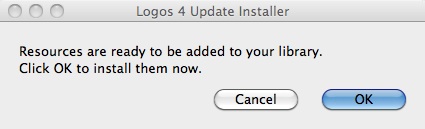
| Mac – click Logos icon jumping on dock then click OK |
PC – logos icon on task bar – click icon then click Restart |
 |
 |
Right Click
Logos has many Right Click (contextual) items. PC mice and trackpads typically have left and right mouse buttons. Mac OS X can use many USB mice and trackballs. Apple’s Magic Mouse and Magic Trackpad use finger gestures. Magic Prefs offers more Mac “Magic” + Trackpad configuration options.
Mac Right Click options:
- Use mouse or trackball right click
- While pressing Control key, Click (or tap track pad), then release Control key.
- On a Trackpad, can right-click with two fingers or configure a right-click area.
Search – Handouts
Handouts have (future revamp planned)
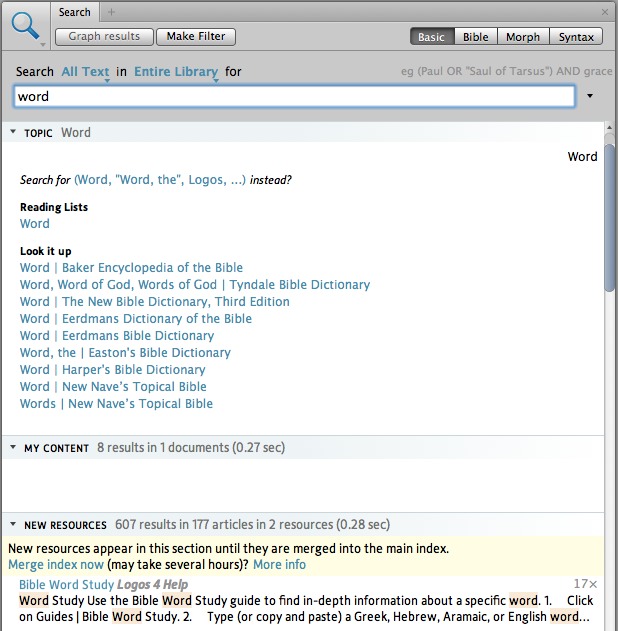
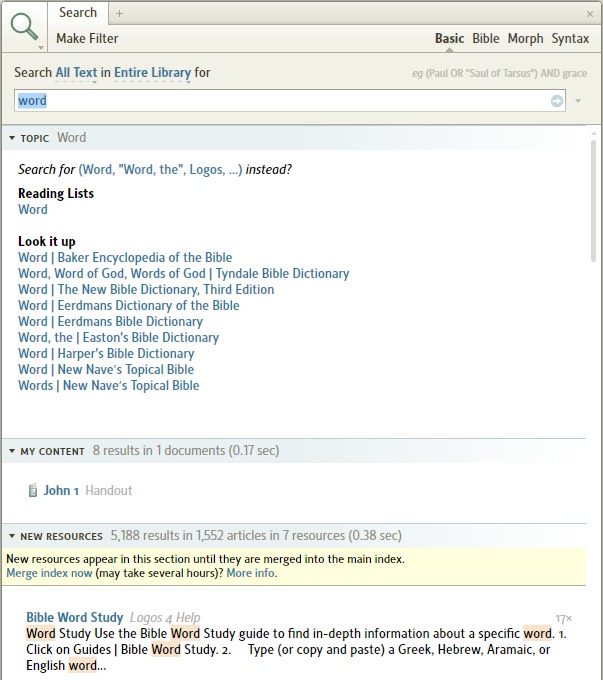
| Mac search finds Handout – not displayed |
PC search finds and shows Handout |
 |
 |
Screen layout
Many items inside PC window located on Mac Menu Bar on top of screen: File, Guides, Tools, Layouts, Help
