Time Machine Duplication
The macOS installation can use Time Machine Backup to copy all user settings (including Logos) to new computer (or macOS reinstall on existing computer). Apple Support has:
Optional: since Logos indexes can be rebuilt, they can be excluded from Time Machine hourly backup
Caveat: if want to change user name, then Time Machine Duplication does not work because Time Machine cannot change the fully qualified path (includes user name) to Logos resource files, which is inside database file(s) used by Logos.
Copy Logos Resources to macOS
Note: variation of Method 3 for PC’s on Quick Installation onto multiple computers - can copy Logos/Verbum resources from existing Mac installation OR Virtual Machine (Parallels, VMWare Fusion, VirtualBox) OR Windows computer (including Boot Camp), then use scan <path> command
1) Copy Logos Resources folder from your existing application installation to your Mac desktop using File Sharing OR an external drive OR Target Disk mode
| Operating System |
Application |
Resources folder with path (username is your login name; random is a random 8.3 folder name, e.g. 96w5gowz.x6i ) |
| macOS or OS X |
Logos 4+ |
/Users/username/Library/Application Support/Logos4/Data/random/ResourceManager/Resources |
| macOS or OS X |
Verbum |
/Users/username/Library/Application Support/Verbum/Data/random/ResourceManager/Resources |
| macOS or OS X |
Noet |
/Users/username/Library/Application Support/Noet/Data/random/ResourceManager/Resources |
| Windows 7+ |
Logos 6+ |
C:\Users\username\AppData\Local\Logos\Data\random\ResourceManager\Resources |
| Windows 7+ & Vista |
Verbum |
C:\Users\username\AppData\Local\Verbum\Data\random\ResourceManager\Resources |
| Windows 7+ |
Noet |
C:\Users\username\AppData\Local\Noet\Data\random\ResourceManager\Resources |
| Windows 7+ & Vista |
Logos 5 |
C:\Users\username\AppData\Local\Logos5\Data\random\ResourceManager\Resources |
| Windows 7+ & Vista |
Logos 4 |
C:\Users\username\AppData\Local\Logos4\Data\random\ResourceManager\Resources |
| Windows XP |
Logos 4 |
C:\Documents and Settings\username\Local Settings\Application Data\Logos4\Data\random\ResourceManager\Resources |
2) Logos Install or Verbum Install downloads Mac disk image from Faithlife servers. Also Install Logos Bible Software | Mac & Install Verbum Bible Software | Mac have drag & drop Logos / Verbum application to the Applications folder. If application copying does not work, Logos Help Center (LHC) has Unable to Copy Logos to Applications Folder | Mac & Unable to Update or Install | Mac & Installing and Updating (Desktop) and Verbum Help Help Center (VHC) has Unable to Copy Verbum to the Applications Folder | Mac & Unable to Update or Install | Mac & Installing and Updating (Desktop). Supported releases have active Faithlife development & Tech support, which includes crash diagnosis & bug fixes (along with new features). Unsupported releases are no longer being developed nor supported by Faithlife (only option for problem assistance is forum discussion with other Faithlife customers: Logos 9 Desktop, Logos 8 Desktop, Logos 7, Logos 6, Logos 5, Logos 4)
For Logos, login to Logos followed by downloading disk image
2a) Logos install has current stable download licensed for your library
OR
2b) Logos Downloads Archive has last stable Logos download links for unsupported releases
For Verbum, login to Verbum followed by downloading disk image
2a) Verbum install has current stable download licensed for your library
OR
2b) Logos Downloads Archive has last stable Verbum download links for unsupported releases
3) Launch “Logos Bible Software” OR “Verbum” application then sign-in (needs internet connection: releases prior to 7.18 cannot login to Faithlife servers as of 10 Dec 2018)
4) For release 8.4+ Library Download:
- Click in Everything box to choose Minimal OR Quick Install
- Optional: Uncheck “Automatically download new resources”
5) Once downloading starts, Cancel Download
- Release 8.4+ click X (in upper right corner) to close “Logos Bible Software” OR “Verbum” setup followed by launching “Logos Bible Software” OR “Verbum” application
- Prior to 8.4 click on notification in main window to Cancel Download
6) Click “Logos” OR “Verbum” => Preferences (OR Tools => Program Settings)
- Change “Automatically Start Downloads” OR “Automatically Download Updates” from Yes to No
- Release 8.4+ quit “Logos Bible Software” OR “Verbum” followed by lauching application then wait for “Updates are available” notification
7) Type scan <path to Resources folder> in Command bar & Enter
- If Resources folder is on your Mac Desktop, use scan /Users/username/Desktop/Resources command (replacing username with your login name)
- If Resources folder is on an external drive, use scan /Volumes/volume name/Resources command (replacing volume name with external drive name, e.g. USB default volume name is NONAME)
- Note: for Logos, <path to resources folder> must not contain /Logos4 folder because Scan command copies resources files within specified path (including subfolders) into your Logos4 folder.
- Note: for Verbum, <path to resources folder> must not contain /Verbum folder because Scan command copies resources files within specified path (including subfolders) into your Verbum folder.
- Option: can open diagnostic log to verify scan path added:
| Logos |
Application Diagnostic Log |
| Logos |
/Users/username/Library/Application Support/Logos4/Logging/Logos.log |
| Verbum |
/Users/username/Library/Application Support/Verbum/Logging/Verbum.log |
- After scan path command is entered, scanning begins immediately.
- After scan has copied resources, Indexing icon should appear in Menu Bar with progress.
- If “Updates are available” notification appears, can “Click here to download updates”
- Indexing may take several hours, can open indexer diagnostic log file to monitor progress (replacing username with your login name)
| Logos |
Indexer Diagnostic Log |
| Logos |
/Users/username/Library/Application Support/Logos4/Logging/Indexer.log |
| Verbum |
/Users/username/Library/Application Support/Verbum/Logging/Indexer.log |
8) Optional: Click “Logos” OR “Verbum” => Preferences (OR Tools => Program Settings)
- Change “Automatically Start Downloads” OR “Automatically Download Updates” from No to Yes
- Change “Use Internet” from Yes to No (can control when to sync stuff with Logos servers)
Duplicate Logos Mac Installation
Not Supported – this method saves lengthy downloading and indexing by duplicating an existing Mac installation for the same username - has worked for some, but failed for others:
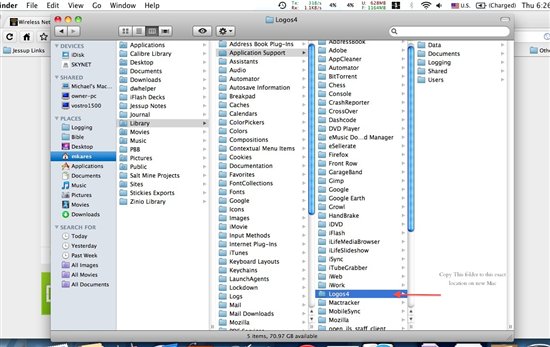
Note: username is your login name, which is included in the fully qualified path to resource files (inside a database file used by Logos) so this method always fails if username is different.
1) Navigate to /Users/username/Library/ApplicationSupport/ folder
2) Copy Logos4 OR Verbum folder to an external drive with about 15-30 GB free (depends on the size of your library)
3) Copy “Logos Bible Software” OR “Verbum” application onto new Mac from a fresh .dmg download
4) Copy Logos4 OR Verbum folder from external HD to new computer’s /Users/username/Library/ApplicationSupport/ folder
5) If prompted for account during login, can enter password OR quit application, then copy /Users/username/.config and /Users/username/.mono folders from old Mac to /Users/username on new Mac
NOTE: Clicking on sidebar icon with house will take you to your home directory (/Users/username). Make sure you do not look under your HD root directory—that library folder won’t have the info you are looking for.
Return to Logos Bible Software Wiki